If you have a Vodafone Broadband connection in the UK or Ireland, you were likely given the standard Vodafone Ultra Hub 7. While it handles basic home Wi-Fi fine, power users and tech enthusiasts often want more control, better security, or integrated network setups using custom hardware like pfSense, Ubiquiti UniFi, TP-Link, or Asus routers.
The good news? You can completely bypass the Ultra Hub 7 and connect your own router or firewall directly to the fiber ONT (Optical Network Terminal).
In this guide, we will walk you through how to configure your custom hardware for Vodafone Fiber and Vodafone FTTC, including how to extract your PPPoE credentials, handle VLAN tagging, and optimize your MTU settings for maximum speed.
Indice
Why Replace the Vodafone Ultra Hub 7?
Replacing the default ISP hardware gives you several advantages:
- Full control over your network: Custom firewall rules, VPN clients/servers, and detailed bandwidth monitoring.
- Better performance: Eliminate local bottlenecks when handling hundreds of concurrent network connections.
- No forced MAC cloning: Vodafone does not lock your connection to the Ultra Hub 7’s MAC address, making hardware upgrades seamless.
What You Will Need
Before starting, gather the following details:
- Your Vodafone Ultra Hub 7 Router: Look at the sticker on the back or bottom to find its Serial Number.
- Your Custom Router or Firewall: Any router supporting PPPoE and VLAN tagging on the WAN interface (e.g., pfSense, OPNsense, UniFi Dream Machine, TP-Link Omada, Asus, etc.).
- An Ethernet Cable: Connecting your ONT directly to your WAN port (or managed switch).
Step 1: Obtain Your Vodafone PPPoE Credentials
Unlike some ISPs that require you to call support for login details, Vodafone uses a standard credential format based on your router’s hardware serial number:
- Username format:
SDY<SERIAL_NUMBER>@vfiefttc.ie
(Replace<SERIAL_NUMBER>with the exact serial number printed on your Ultra Hub 7 sticker, keeping theSDYprefix). - Password:
broadband
Note: MAC address cloning is not required. The connection authenticates purely based on these PPPoE credentials.
Step 2: Handle VLAN 10 Tagging
Vodafone Fiber and FTTC connections require traffic on the WAN port to be tagged with VLAN 10. You can set this up in one of two ways depending on your hardware topology:
Option A: Tagging directly on your Router/Firewall (Most Common)
Go to your router’s WAN interface settings, set the Internet Connection Type to PPPoE, and enable VLAN Tagging (ID: 10) directly on the WAN port.
Option B: Offloading VLAN Tagging to a Managed Switch
If your firewall runs inside a Virtual Machine or your router handles VLANs upstream, you can offload VLAN 10 tagging to a managed switch (such as a Ubiquiti Switch Lite 8 PoE).
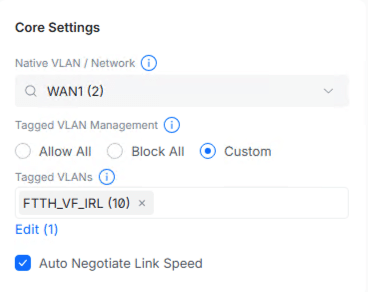
- Connect the cable from the SIRO / Fiber ONT directly into a switch port (e.g., Port 8).
- Tag that specific switch port on VLAN 10.
- Deliver the traffic untagged to your router’s virtual or physical WAN interface.
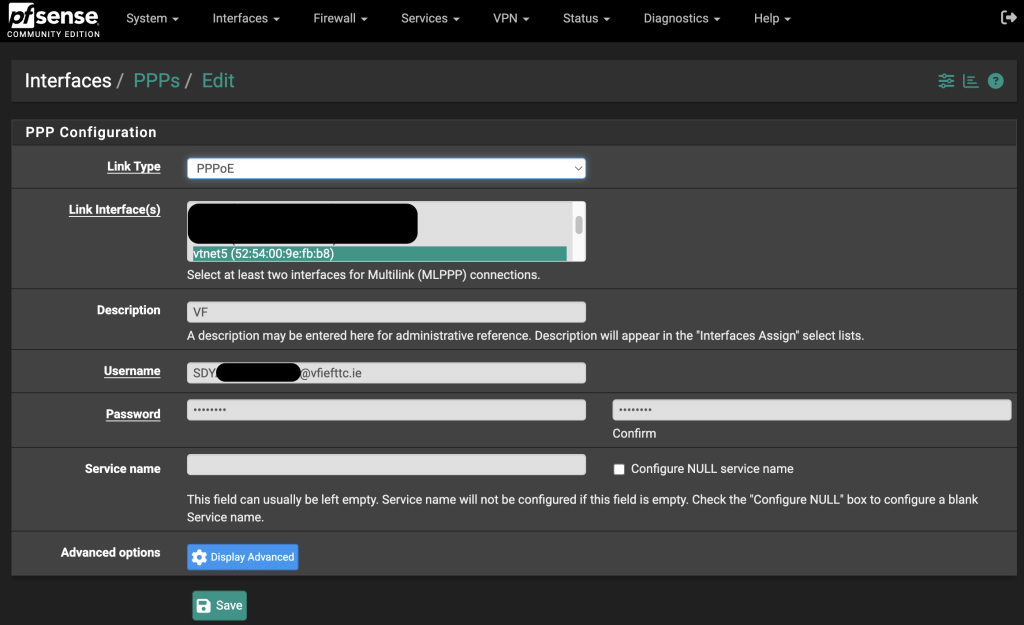
Step 3: Configure the PPPoE Connection
- Open your router or firewall configuration interface (e.g., pfSense, UniFi Controller, or router web dashboard).
- Navigate to your WAN Interface configuration.
- Select PPPoE as the Link / Connection Type.
- Enter your credentials:
- Username:
[email protected] - Password:
broadband
- Username:
- Leave the Service Name blank (or set to default).
Step 4: MTU Optimization & Speed Verification
To prevent packet fragmentation over PPPoE connections, adjust your WAN interface MTU (Maximum Transmission Unit) setting to 1492.
Once saved and applied, your custom router will establish a direct session with Vodafone’s network within a few seconds.
Real-World Speed Test Results
Bypassing the Ultra Hub 7 yields excellent performance with minimal overhead:
- Download Speed: ~880 Mbps on a 1 Gbps Gigabit profile.
- Upload Speed: ~102 Mbps on a 100 Mbps profile (fully maxing out the allocated upload tier).
Summary Checklist
| Setting | Value |
| Connection Type | PPPoE |
| VLAN ID | 10 |
| Username | SDY<SERIAL_NUMBER>@vfiefttc.ie |
| Password | broadband |
| MTU | 1492 |
| MAC Address Cloning | Not Required |
By following these simple steps, you can enjoy a faster, fully customizable home network without relying on the Vodafone Ultra Hub 7!
